A virtual office built on still photos

Look up.
They’re right beside you.

A still photo every few minutes shows who’s in and who’s free to talk. No video stream. Backgrounds are removed or blurred first.

Free up to 10 people · No card needed

  • Your seat
    You
  • Aoi Sato
  • Ken Tanaka
  • Mika Suzuki
  • Sam Carter
  • Ren Yamamoto
  • Sakura Kobayashi
  • Priya Nair
  • Nour Haddad
  • Emma Wilson
  • Mateo Garcia
  • Amara Okafor

It’s a demo. Pick anyone. The people are AI-generated.

One day

Different places. Same day.

One glance tells you who’s in and who’s free to talk. Someone steps out, someone comes back, someone takes a breather. The small signals of an office, from wherever you are.

09:00

Good morning.

One tap for where you’re working and one for “Start work”. Pick how you feel today, and your seat lights up.

10:40

“Got a sec?” They do.

Aoi is open to chat. Select Aoi’s tile and you’re talking, like leaning over to the next desk.

13:10

For when you’re back.

Ken is on a break. Anything that can wait goes on a sticky note at Ken’s desk, there when the break is over.

15:30

A thank-you that lands.

Pick a tag, add a line, send it. On Mika’s screen, a small celebration.

18:05

See you tomorrow.

Press “End work” and your tile fades to gray. About now, Sam’s seat in London lights up.

  • 🙂 How are you?
    You
  • Open to chat
    Aoi Sato
  • YouFor when you’re back
    Ken Tanaka
  • ♥ Thanks as always
    Mika Suzuki
  • Sam Carter
  • Yui Takahashi

Watch

The real app, in thirty seconds.

Recorded with Kumo Studio, a made-up team. Every name and message is invented; the people are AI-generated.

  1. See who’s in, by face and status
  2. Send a quick audio call-out
  3. Then start a voice call
  4. Leave a sticky note for later
  5. Say thanks, right there

Presence

Glance around. See who’s in.

Each tile is a still photo that refreshes every few minutes. It’s not a video stream.

  • Automatic snapshots every few minutes (interval set per workspace)
  • Background removal or blur
  • Online, Away, In Meeting, On Break, Do Not Disturb, Offline
  • Automatic Away when no face is in frame (detected on your device)
  • A status emoji and a short line
  • Backgrounds, frames and face masks to dress up your tile
  • An “Open to chat” signal
  • Map view and work-location filters
  • A mini window that stays on top, and full-screen mode

The ring color tells you how someone is right now.

When no face is in frame for a while, you show as Away. Sit back down and you’re online again.

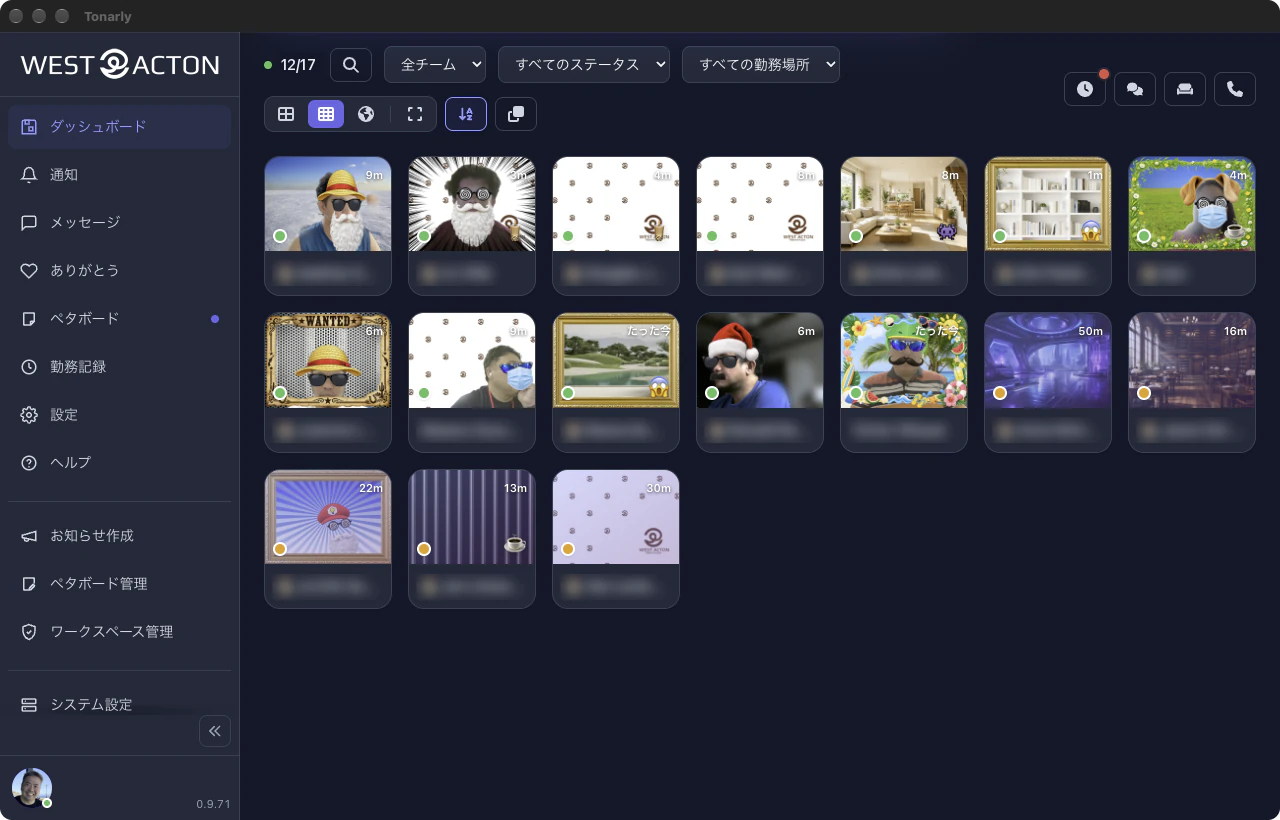
On the real screen, it looks like this.

The Tonarly dashboard: a menu on the left and tiles for 17 members in three rows. Some tiles show a member’s still photo dressed up with a background, frame or face mask; others show only the background. Each tile has a status dot.
A real screen from our own workspace, in Japanese, with some members left out and names blurred. Backgrounds, frames and face masks are each person’s own choice; empty tiles belong to members who were away from the camera at that moment.

Wherever you are, you’re on the same floor.

Approximate location only, at region level. It comes from a coarse position the member chose to share, or is otherwise estimated from their IP address or time zone.

Talking

Talk like you’re leaning over.

No meeting invite needed. Call from a tile, send a short audio call-out, or drop into the lounge anytime.

  • Voice and video calls, one-to-one and group
  • Screen sharing
  • Group-call recording (up to 2 hours per session)
  • Missed-call notifications
  • Short recorded audio call-outs
  • Lounges you can drop into, no invitation needed
  • DMs, group chats, files and voice messages
  • Chat rooms for everyone, plus one per team
  • Read receipts only once someone acts on the message, not just because it was on screen
🗣 Lounge 3 in the lounge
  • You
  • Aoi Sato
  • Ken Tanaka
  • Mika Suzuki

Select Aoi’s tile to start a call, or Mika’s to send an audio call-out: a short voice clip, like a word across the desk.

For later

Leave it on their desk.

When it can wait, stick a note on their desk. Write it on the team board. Put your thanks into words.

  • Sticky notes with replies, reactions and 10 animal styles
  • In the desktop app, notes pop out as their own windows
  • Sticky Wall: a shared board for notes and handwriting
  • Announcements with a confirm button and a list of who confirmed
  • Send thanks with a tag and a line. A small celebration plays, and the history is kept
  • The monthly thanks digest shows whole-workspace totals only

Stick a note

Left the papers on your desk

Ken TanakaOn Break

Send thanks

On their screen

The day

From first hello to last wave.

Your day has a clear start and end. Calendar events switch you to In Meeting, and whatever arrives while you’re busy waits and comes in one batch.

  • Clock in and out, with today’s plan, what you did and how you feel
  • A monthly work record you can correct yourself
  • Holiday calendar and break deduction
  • One-tap work location: office, remote, off-site, or one you name
  • Google Calendar sync: events set In Meeting for you
  • Browser and push notifications with a tone per kind
  • One catch-up when Do Not Disturb ends. Quiet hours too
  • Missed calls forwarded to Slack or Teams
YouOnline

09:00

Start work

How you feel, and a line on today’s plan.

10:30

In Meeting

Switched automatically from a Google Calendar event.

12:00

On Break

Breaks are deducted from work time.

13:30

Do Not Disturb

Notifications pile up quietly.

15:00

Catch-up

The 3 things that arrived, delivered together.

16:30

Online

Afternoon is clear, so you switch on “Open to chat”.

18:00

End work

What you did, what’s next, and how you feel.

A different tone for each kind

Tap to hear it

Apps

In the browser, on your desktop, on your iPhone.

Use it in the browser you already have, install the desktop app for Mac and Windows, or get the app for iPhone and iPad. The Android app is coming soon.

  • Web Chrome · Edge · Firefox · Safari Available now
  • Desktop Mac · Windows — stays running, mini window, native notifications and calls Download
  • Phone iPhone · iPad — push notifications, lock-screen calls, voice and video. Android coming soon App Store

Trust

What’s shared, and what isn’t.

  • Backgrounds removed or blurred before anything is shared.
  • Your screen, only when you share it.
  • Monthly thanks: whole‑workspace totals only.

What you can rely on

Image processing
Only images that went through background removal or blur are shared
Away, On Break, In Meeting
No photos are taken then. Photos are taken only while you’re Online or on Do Not Disturb
Your screen
Shared only during a call, only when you choose to
Automatic Away
Face detection runs on your device, so nothing is uploaded for it
Work record
Built from your own clock-ins; you review and correct it
Thanks
The monthly digest shows whole-workspace totals, never a per-person score
Passwords
Reset links work once and expire after 60 minutes. A reset signs out every device

What admins control

Sign-in
Google and Microsoft, with allow lists of domains and addresses
IP restrictions
Limit where people can connect from (Business)
Use without a camera
Members an admin has approved can work without one
Image retention
Set per workspace by your admin; older images are deleted
Reports
Presence summaries and CSV. Admins can open them; managers only for their own team
Storage and recordings
A quota per plan, a usage breakdown, and recordings you can list and delete
Feature switches
Turn features on or off per workspace
Roles and teams
Admin, manager, team leader, member, observer. Teams nest to match your org chart
Languages and time zones
20 interface languages, a time zone per member
Your own address
yourteam.tonarly.com, one per organization

Pricing

Free for up to 10. Forever.

You pay by plan and headcount, nothing else. Free up to 10. Past that, you pay for every member, from $50 a year (or $5 a month).

Free

$0

Free forever

For small teams of up to 10

  • Up to 10 members
  • All core features
  • 5 GB storage
  • Recordings kept 7 days
Start free

Business

$90

per member per year, plus tax

For organizations with security or audit requirements

  • Everything in Standard
  • 200 GB storage
  • IP address restrictions (only from addresses you allow)
  • Audit logs (who did what, when)
  • Priority support
Try 30 days free

30 days of everything in Business, free. No card needed. Afterwards you’re on Free, and your members and messages stay.

Prices exclude tax. Card payment via Stripe. For Enterprise (300+ seats), email us at [email protected].

By headcount

Standard—/ year, billed yearly, plus tax
Business—/ year, billed yearly, plus tax
Compare plans in detail
FreeStandardBusiness
MembersUp to 10UnlimitedUnlimited
Storage5 GB50 GB200 GB
Recording retention7 daysConfigurableConfigurable
Snapshot retentionSet by adminSet by adminSet by admin
IP address restrictions——✓
Audit logs——✓
SupportHelp pagesEmailPriority

Before you ask

The questions we hear most

Is the camera streaming all the time?

No. Tonarly takes one still photo at the interval your workspace sets (every few minutes). There is no video stream, and switching your status to Away or On Break stops the photos.

Will my room be visible?

Your room isn’t shared as it is. Every image goes through background removal or blur before it’s shared. An image that skipped that step is never shown to anyone.

Can anyone see my screen?

No. Your screen is shared only during a call, and only when you choose to share it.

Can I use it without a camera?

Yes, with your admin’s approval. You request it, the admin approves.

How long are the photos kept?

The admin sets the snapshot retention for the workspace. Images older than that are deleted.

How many people can use it free?

Up to 10 people, with every core feature, free for good. Past 10, the workspace moves to Standard or Business and every member is billed.

What happens when the trial ends?

After 30 days the workspace returns to Free. Your members and messages stay as they are. A workspace over 10 people can then be used by only 10 at a time and can’t add new members until it upgrades to Standard or Business.

Which browsers and apps are supported?

The latest desktop Chrome, Edge, Firefox and Safari. The mini window needs a Chromium browser. The desktop app for Mac and Windows is on the download page, and the iPhone and iPad app is on the App Store. The Android app is coming soon.

How do I pay?

By card, through Stripe. Invoicing isn’t offered.

Can I belong to several workspaces?

Yes. One email address can belong to several workspaces; each has its own address to sign in at.

Pull up a chair.

Setting up a workspace takes a few minutes. Free for up to 10 people, forever.

Start free